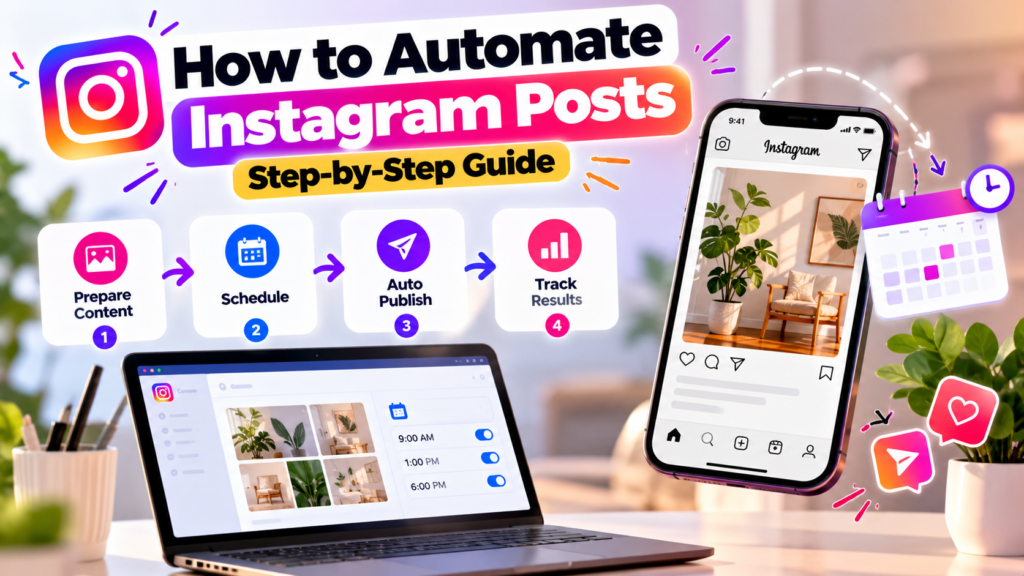
“Automating Instagram posts” sounds like software posting on your behalf while you do something else, and that is close to the truth. In practice it means one thing: you prepare posts ahead of time, and Instagram publishes them at the time you chose, without you opening the app at that moment. It does not mean software inventing content, liking other people’s posts or following accounts. Those are different things, they are the risky ones, and none of them are covered here.
This guide covers the official way to do it: what you need, the three legitimate routes, a step-by-step workflow, and the mistakes that make scheduled content perform worse than posts made by hand.
What You Need Before You Start
Instagram only allows scheduled publishing for professional accounts (Business or Creator). If you’re on a personal account, switch in your Instagram settings. It’s free, takes a minute, and you can switch back. Some third-party tools also ask you to link the account to a Facebook Page, depending on how the connection is set up, so check that before you plan your first week.
Beyond the account, have these ready:
- Finished media files. Scheduling is not editing. Photos, Reels and carousel slides should be exported and ready.
- Written captions. Draft them in a notes app or doc first so you’re not writing under pressure inside a scheduler.
- A rough idea of when your audience is online. You’ll get that from your own Instagram Insights, covered below.
The Three Official Ways to Schedule Instagram Posts
All three of these work through Instagram’s sanctioned systems. The differences are in cost, flexibility, and what else the tool does for you.
1. Instagram’s built-in scheduler. Professional accounts can schedule posts directly in the Instagram app when creating a post, by choosing the scheduling option on the final screen. It’s free and requires nothing extra. The trade-off is that it’s one account at a time, mobile-first, and limited when it comes to planning a month at a glance. At the time of writing Instagram allows scheduling a couple of months ahead; confirm the current window in the app.
2. Meta Business Suite. Meta’s free dashboard for Facebook and Instagram. It adds a calendar view and lets you plan both platforms together. If you only need to schedule posts and nothing more, this is often enough.
3. A third-party tool connected through Instagram’s official API. This is where multi-account management, caption drafting help, bulk planning, and extras like comment and DM automation live. These tools connect through Meta’s official API using a proper authorization flow, which is the key requirement. More on how to check that below.
| Built-in scheduler | Meta Business Suite | Third-party (official API) | |
|---|---|---|---|
| Cost | Free | Free | Paid, usually with a trial |
| Accounts | One at a time | Linked Pages and accounts | Often several |
| Calendar planning | Limited | Yes | Yes |
| Extras (DM/comment automation, AI captions) | No | Limited | Varies by tool |
| Best for | A single account, light use | Teams already living in Meta tools | Regular posting, multiple formats or accounts |
If you post a few times a week to one account, start with the free options. A paid tool earns its cost once planning, volume or automation beyond posting matters.
How to Tell a Safe Tool From a Risky One
Before connecting any scheduling tool, check how it asks to connect to your account.
A legitimate tool sends you to Instagram’s or Facebook’s own login and asks you to approve specific permissions. You can see and revoke that access later in your account settings.
A tool that asks you to type your Instagram password into its own form is logging in as you instead of using sanctioned access. Walk away from it. The same goes for anything that promises to “grow your followers automatically”: that describes outbound activity on other people’s accounts, which Instagram’s official API does not support. For the full explanation, see is Instagram automation safe.
Step-by-Step: Setting Up Automated Posting
Step 1: Decide what’s worth scheduling
Not everything should be scheduled. Evergreen posts, educational content, product features, behind-the-scenes content you filmed in advance, and announcements with a known date all schedule well. Anything reactive, like a trending moment, a live event, or a reply to current news, loses its value if it’s published on a delay. Keep room in the week for posts you make by hand.
Step 2: Batch your content
The real time saving doesn’t come from the scheduler. It comes from working in batches. Film several Reels in one session. Write a week or two of captions in one sitting. Then schedule them together. Switching between creating and publishing every day is the habit scheduling is meant to remove.
Step 3: Get the formats right
Each format has its own requirements, and a scheduled post that fails because of a wrong file is easy to miss.
- Reels are vertical (9:16). Length limits have changed over time, so check the current maximum before you film long ones.
- Feed photos and carousels work well in portrait (4:5). Carousels allow multiple slides, and the cap has been raised before, so confirm the current number.
- Stories are also vertical and short-lived. Whether you can schedule them depends on the tool.
- Captions have a character limit of 2,200. Anything past the first couple of lines gets cut behind “more,” so put the point first.
Step 4: Pick posting times from your own data, not a generic list
“Best time to post” articles average out millions of accounts, and your audience isn’t an average. Open Insights in the Instagram app, find the section showing when your followers are most active, and start with the hours that show the highest activity. Then test: schedule similar posts at two different times for a couple of weeks and compare reach. Adjust from your results.
Also check the time zone your scheduler is using. A post set for 9:00 and published at 9:00 in the wrong zone is one of the most common scheduling errors, especially when you’re managing an audience in a different country.
Step 5: Schedule the posts
Choose your tool, upload the media, paste the caption, and set the date and time. Add alt text where the tool supports it; it helps accessibility and costs nothing. Then check the preview, especially the crop on feed posts, before confirming.
Step 6: Review the queue every week
A scheduled calendar is not a “set it and forget it” system. Once a week, open the queue and check three things: is anything out of date because something changed, are any posts failing, and does the upcoming mix still make sense? Scheduling a month of content and never looking again is how a brand ends up promoting a sale that finished last week.
Step 7: Be present after the post goes live
This is the step that automation can’t replace, and the one that most affects results. When a post goes out, people comment. If nobody responds for hours, early engagement, which Instagram’s ranking responds to, goes to waste. Check comments in the first hour or so after publishing, or set up comment handling so common questions get answered quickly. Our guide on Instagram comment automation covers how to do that without making replies feel robotic.
Scheduling a Post in AutoPubliX
AutoPubliX includes content scheduling in the same dashboard as its comment and DM automation, connected through Instagram’s official Meta API.
[[VERIFY: replace this block with the exact steps from the live product, with screenshots. Cover: connecting the Instagram account, creating a post, choosing format (photo, Reel, carousel), setting date/time and time zone, AI caption drafting if used, and where to see the queue and any failed posts.]]
Because scheduling and engagement live in one place, you can set up the post and the comment-to-DM reply flow together instead of in two different tools. See the feature breakdown for what’s included.
What Scheduling Can’t Do
Knowing the limits saves you from planning around something that isn’t there.
- Trending audio. Instagram’s licensed music library is generally tied to posting inside the app. Reels scheduled through third-party tools often can’t use it, so if trending sounds are central to your strategy, post those by hand.
- Real-time responsiveness. A scheduler publishes what you told it to publish, nothing more. It doesn’t know a news event happened.
- Daily limits. Meta limits how many posts can be published through the API per account in a rolling 24-hour window. The limit is high enough that most accounts never reach it, but if you manage many posts per day, check the current number in Meta’s documentation.
- Quality. Scheduling a weak post doesn’t improve it. It publishes it on time.
Mistakes That Make Scheduled Posts Perform Worse
Posting the same thing everywhere without adapting it. A Reel cross-posted unchanged to every platform often underperforms on at least one. Adjust the caption and the first seconds for each place.
Scheduling too far ahead without a review. Prices, offers, team members and news change. The further ahead you schedule, the more likely something becomes wrong.
Ignoring failed posts. A post can fail to publish if a file isn’t valid or the connection lapses. If you never look at the queue, you may not notice until a week of content is missing.
Over-tagging and over-hashtagging. Quantity isn’t the point. A few relevant hashtags and a clear caption do more than a long block copied from a template.
Treating automation as a substitute for presence. The accounts that do well with scheduling use it to free up time for the parts only a person can do: replying, reacting and noticing what’s working.
A Simple Weekly Routine
One workable pattern for a small team or solo creator:
- Once a week, batch. Film or create the content for the next several posts and write the captions.
- Schedule the batch. Load everything, set the times, and check the previews.
- Review the queue. A short pass at the start or end of the week to catch anything outdated or failed.
- Check in after posts go live. Reply to the early comments.
- Look at results monthly. Compare reach and engagement against your posting times and formats, and adjust the schedule.
Adjust the frequency to your capacity. A schedule you can keep is worth more than an ambitious one that collapses after two weeks.
FAQs
Is it safe to automate Instagram posts?
Yes, when you schedule through Instagram’s own tools or a third-party tool that connects through Meta’s official API. The risk comes from tools that ask for your password or promise automatic follower growth.
How far in advance can I schedule?
It depends on the tool. Instagram’s built-in scheduler allows scheduling a couple of months ahead. Check the current limit in the app or in the tool’s documentation.
Will scheduled posts get less reach than posts I publish manually?
Instagram says scheduling through its sanctioned tools doesn’t penalize reach. What changes reach is the content and timing, not whether you pressed publish yourself.
Want scheduling and comment-to-DM automation in one place? See how AutoPubliX works — start your 14-day free trial, no payment today.